iPhone beta
Join the CrewJio beta
CrewJio is in a small beta for Singapore cabin crew, pilots and their partners, on iPhone. It takes about five minutes to install and set up.
Open this on your iPhone. If you don't have TestFlight yet, install it first (step 1 below).
What you need
An iPhone on iOS 16.4 or later. To check, open Settings, then General, then About. Android is not ready yet.
Your roster stays yours. Only people you add see it, at the level you choose. Screenshots and PDFs are read once and never stored.
Step by step
Install TestFlight
TestFlight is Apple's free app for trying apps before they are in the App Store. You only do this once. If you already have it, skip to step 2.
- Open the App Store on your iPhone.
- Tap Search at the bottom right and type TestFlight. Or tap here to open it directly.
- Tap Get next to TestFlight (the blue icon, by Apple), then confirm with Face ID, Touch ID or your Apple ID password.
- Tap Open. If it asks you to sign in, use your Apple ID, then tap Continue and accept the terms.
Add CrewJio to TestFlight
The invite link is what adds CrewJio to your TestFlight. Do this on your iPhone, not on a computer.
- Tap Open the TestFlight invite at the top of this page. If it opens inside another app, copy the link into Safari instead.
- Safari asks if you want to open this in TestFlight. Tap Open.
- TestFlight shows a page for CrewJio. Tap Accept, or Start Testing if it shows that instead.
- Tap Install and wait for the download. Tap Open when it finishes. CrewJio is now on your home screen, with a small orange dot next to its name. The dot means it is a beta app.
Sign in
Choose Continue with Apple, Continue with Google, or Use email and we send a 6-digit code to your inbox. There is no password to remember. Check your spam folder if the code is slow.
Tell us how you use CrewJio
Pick cabin crew, pilot, or I'm not crew if you are a partner, family member or friend. Crew then choose their rank and aircraft. Friends only see these as small labels.
Add your roster
Tap +, then Import whole month. Choose up to four screenshots of your roster app (list view or calendar view), or one PDF of 2.5 MB or less, and tap Read my roster. Check what we found, then tap Looks right. A code we don't recognise is never saved until you say so. You can also type codes one by one, or add a flight by hand. Not crew? Copy your phone calendar or add your work days instead.
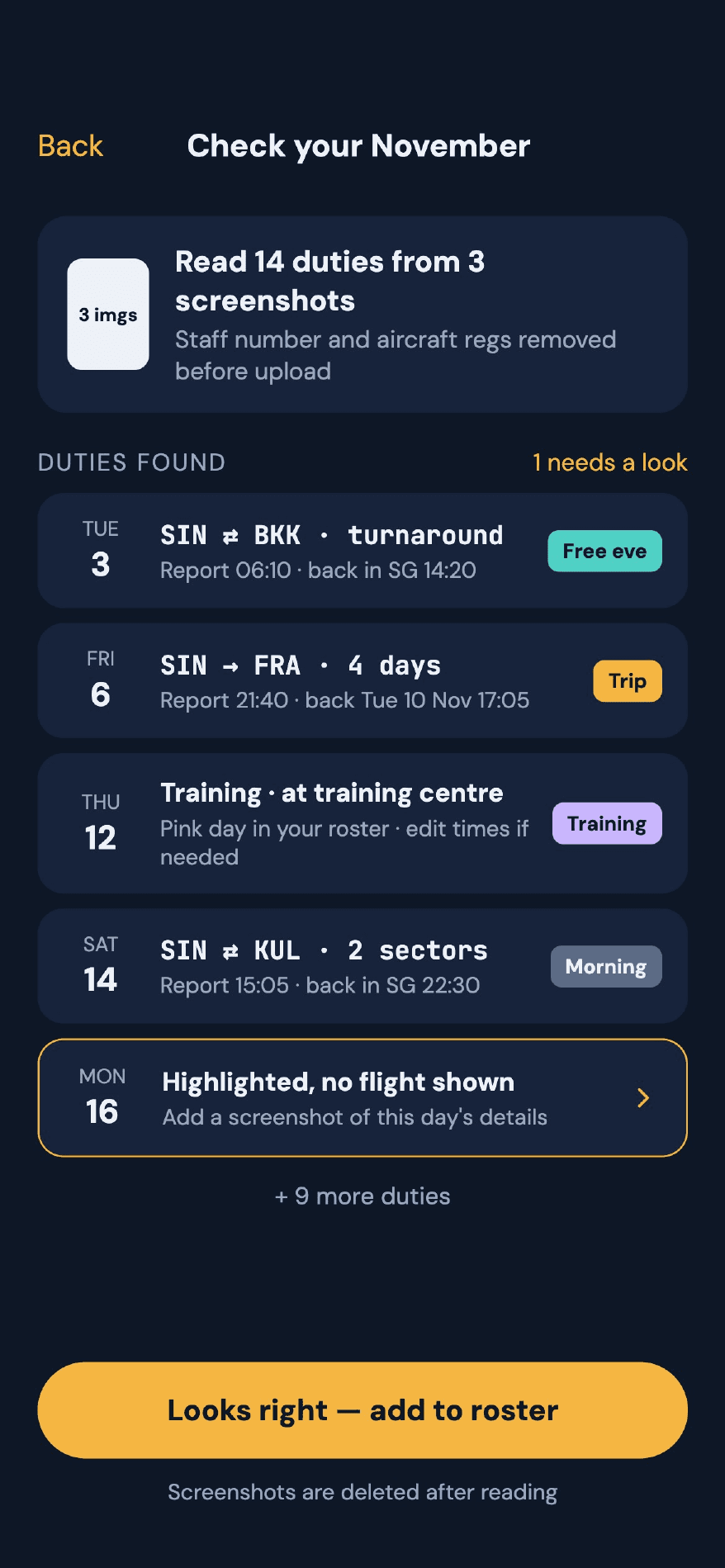
Make a group and invite your crew
Open Crew, tap +, name your group and choose what it can see: off days only, where you are flying, or your full roster. Share the invite code. Friends tap Join with a code on their Crew tab. Groups never see each other.
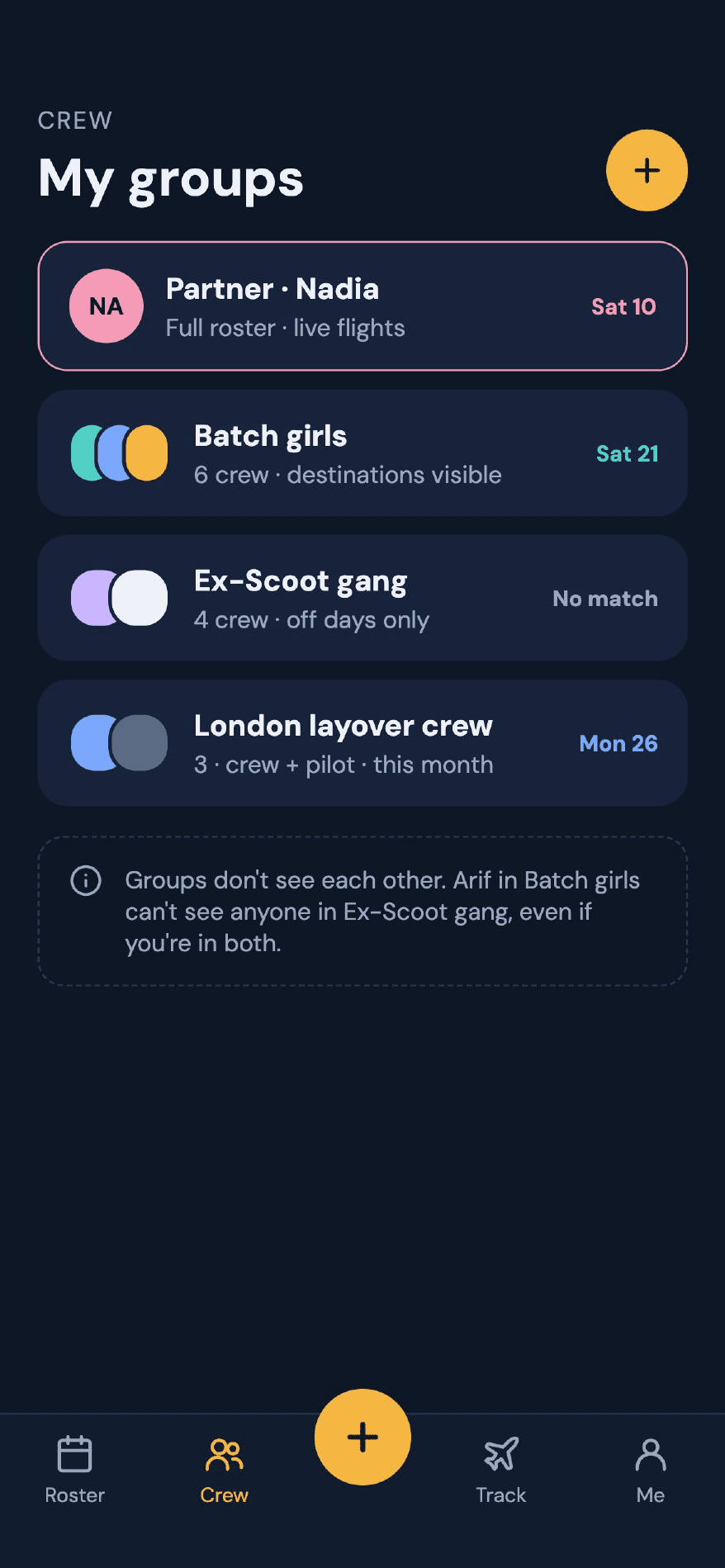
Connect your partner
Open Partner and make a code. Send it to your partner, who enters it in their app. Entering the code connects you straight away, and your partner sees your full roster. Either of you can disconnect any time.
Find the best day, then jio
Open a group to see the best days this month, ranked by rest. Tap When can we meet? on the Crew tab to pick friends from different groups and find a day that works. Tap Propose to send a day to your friends.
If something goes wrong
TestFlight says the beta is full or not available
The beta has a limited number of places. Join the waitlist on our home page and we will email you when more open, or ask the person who invited you to send a fresh link.
I opened the link but nothing happened
Open the link on your iPhone, not on a computer, and install the TestFlight app first. If the link opened in another app, copy it into Safari.
The sign-in code did not arrive
Check your spam folder, wait a minute, then ask for a new code. Only the newest code works. Apple and Google sign-in need no code.
TestFlight says the build has expired
Beta builds last 90 days. Open TestFlight and tap Update next to CrewJio. If there is no update yet, email us and we will send a new one.
TestFlight says my iPhone is not compatible
CrewJio needs iOS 16.4 or later. Open Settings, then General, then Software Update to see if your iPhone can update. Older iPhones that cannot reach 16.4 cannot run the beta yet.
I use Android
Android is not ready yet. Join the waitlist on our home page and we will email you when it is.
Found a bug, or something confusing? Take a screenshot and email hello@crewjio.com. We read everything. CrewJio is independent and not affiliated with any airline.